How to Disable AI in Windows 11: A Comprehensive Guide
Feeling overwhelmed by AI in Windows 11? Learn how to disable Copilot and other AI features for a cleaner, more personalized experience.



Feeling overwhelmed by AI in Windows 11? Learn how to disable Copilot and other AI features for a cleaner, more personalized experience.
Microsoft is increasingly integrating AI features into Windows 11, and while some users find these helpful, others prefer a more traditional computing experience. If you're in the latter group, you're not alone! Many users want to choose which AI tools they use, rather than having them automatically integrated into every application. Fortunately, it's possible to disable most AI features in Windows 11, though it requires navigating a few different settings menus.
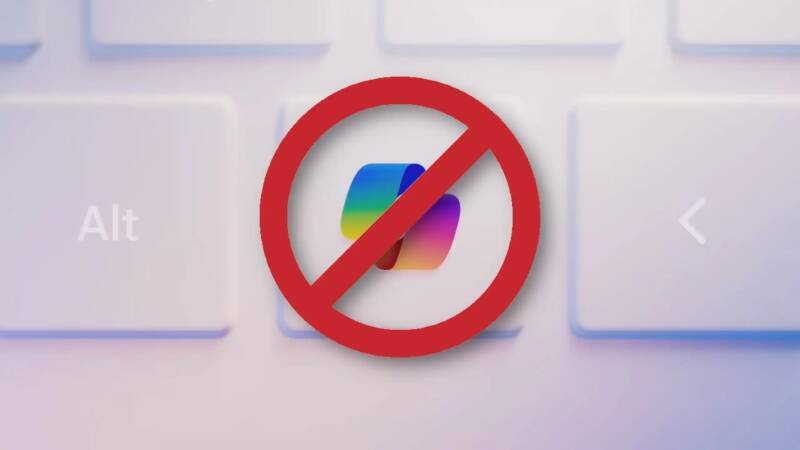
Many new laptops now include a dedicated Copilot key. While you can't physically change the keycap, you can change its function. Go to Settings > Personalization > Text input and click "Customize Copilot key on your keyboard." You can remap the key to open Search, giving it a more classic function. Windows limits you to using other AI apps if you remap to "Custom", so use Microsoft PowerToys for other functions. In our opinion, a standard search function is far more useful than a dedicated AI button for many users.
Windows 11 often runs both "Copilot" and "Microsoft 365 Copilot" in the background. This can be confusing and resource-intensive if you don't actively use these features. To disable them, use the Task Manager (Ctrl + Shift + Esc). In the "Startup apps" tab, find "Copilot" and "Microsoft 365 Copilot," right-click each, and select "Disable."
If you want to completely remove Copilot, search for "Copilot" in the Start menu, right-click the result, and select "Uninstall." You can do the same for "Microsoft 365 Copilot."
File Explorer sometimes adds an "Ask Copilot" option when you right-click on files. Uninstalling Copilot will remove these context menu items automatically. Follow the steps above to uninstall Copilot entirely.
Microsoft 365 apps, like Word, Excel, and PowerPoint, now integrate Copilot, often with limited "AI credits" for standard subscriptions. If you prefer to write without AI assistance, you can disable Copilot within each Office app. Open the app, click File > Options, choose "Copilot" in the left pane, and uncheck "Enable Copilot." We believe this offers users greater control over their workflow.
Even Notepad has Copilot integration now! To disable it, click the Settings gear in the top-right corner of the window, scroll down, and turn off "Copilot." This restores Notepad to its traditional, minimalistic experience.
Copilot+ PCs feature Windows Recall, which captures screenshots of your PC usage. Given privacy concerns, it's wise to ensure this feature is disabled. Go to Settings > Privacy & security and click "Recall" under Windows permissions. Turn off "Save snapshots" and consider deleting existing snapshots. After the controversy, we don't recommend using Recall at all.
Copilot+ PCs also have "Click To Do," which provides contextual AI actions. You can disable it in Settings > Privacy & security > Click To Do. This prevents the feature from activating via the Windows key + Q shortcut or holding down the Windows key and left-clicking.
Windows Studio Effects, available on Copilot+ PCs and some earlier AI PCs, apply real-time visual effects to your webcam image. To disable them, click the system status icons near the clock on your taskbar (or press Windows key + A ) to open the quick settings. Look for the Studio Effects tile and customize which AI webcam effects you want to disable.
Modern web browsers are increasingly integrating AI. Here's how to disable them:
To avoid AI Overviews in Google Search, you can add -ai to the end of your search queries. For a permanent solution, consider using the Hide Google AI Overviews browser extension.
The increasing integration of AI into Windows 11 and other applications raises important questions about user choice and control. Many users value a clean, uncluttered computing experience and prefer to use AI tools selectively. Understanding how to disable these features empowers users to customize their devices to suit their individual needs and preferences. This can also lead to improved performance on older systems by reducing background processes.
Microsoft's aggressive push for AI integration feels like a forced march. While AI has the potential to enhance productivity, it shouldn't come at the expense of user autonomy. Scattering these settings across various menus makes it deliberately difficult for users to reclaim control. It's clear Microsoft is betting heavily on AI adoption, but they need to be more transparent and offer easier opt-out options. It is interesting that they are listening to feedback however, pledging to reduce Copilot's reach.
The trend of AI integration in operating systems and applications is likely to continue. We anticipate that future versions of Windows will include even more AI features. User resistance and privacy concerns may eventually force Microsoft and other companies to provide more granular control over AI integration. In the meantime, users need to stay informed and actively manage their settings to maintain the computing experience they desire. This could impact the demand for alternative operating systems.